

For most photographers, both Mac and PC can be excellent for post-production processing. The better choice depends less on the logo and more on your budget, editing software, screen needs, storage workflow, and whether you want a laptop or desktop.
Choose a Mac if you want a polished, reliable system with strong performance in Lightroom, Photoshop, Capture One, and other creative apps, especially in a laptop. Apple’s MacBook Air, MacBook Pro, Mac mini, and Mac Studio are popular because they are quiet, efficient, and color-friendly out of the box.
Choose a Windows PC if you want more hardware choice, better upgrade options, lower entry prices, or maximum desktop performance for the money.
The simple answer: Mac is often easier and more streamlined; PC is often more flexible and better value. For photo editing, either can work beautifully if you buy the right specs.
Mac Vs Pc for Post-production: the Short Version
The Mac or PC for post production processing question should not be treated like a brand loyalty debate. Think of it as a workflow decision.
If you mostly edit RAW files in Lightroom, make basic Photoshop adjustments, and want a portable machine that “just works,” a modern MacBook or well-chosen Windows laptop can both do the job. If you process large batches, use heavy Photoshop layers, run multiple monitors, or want to upgrade parts over time, a Windows desktop may give you more performance per dollar.
Here is the quick comparison:
| Choose Mac if you want… | Choose PC if you want… |
|---|---|
| Simple buying choices | More hardware options |
| Excellent laptop efficiency | Better desktop value |
| Strong color-managed workflow | Easier upgrades |
| Quiet performance | More ports and configurations |
| Tight Apple ecosystem | More budget flexibility |
The best computer is the one that keeps your editing smooth, your files safe, and your colors consistent.
What Matters Most in a Photo Editing Computer
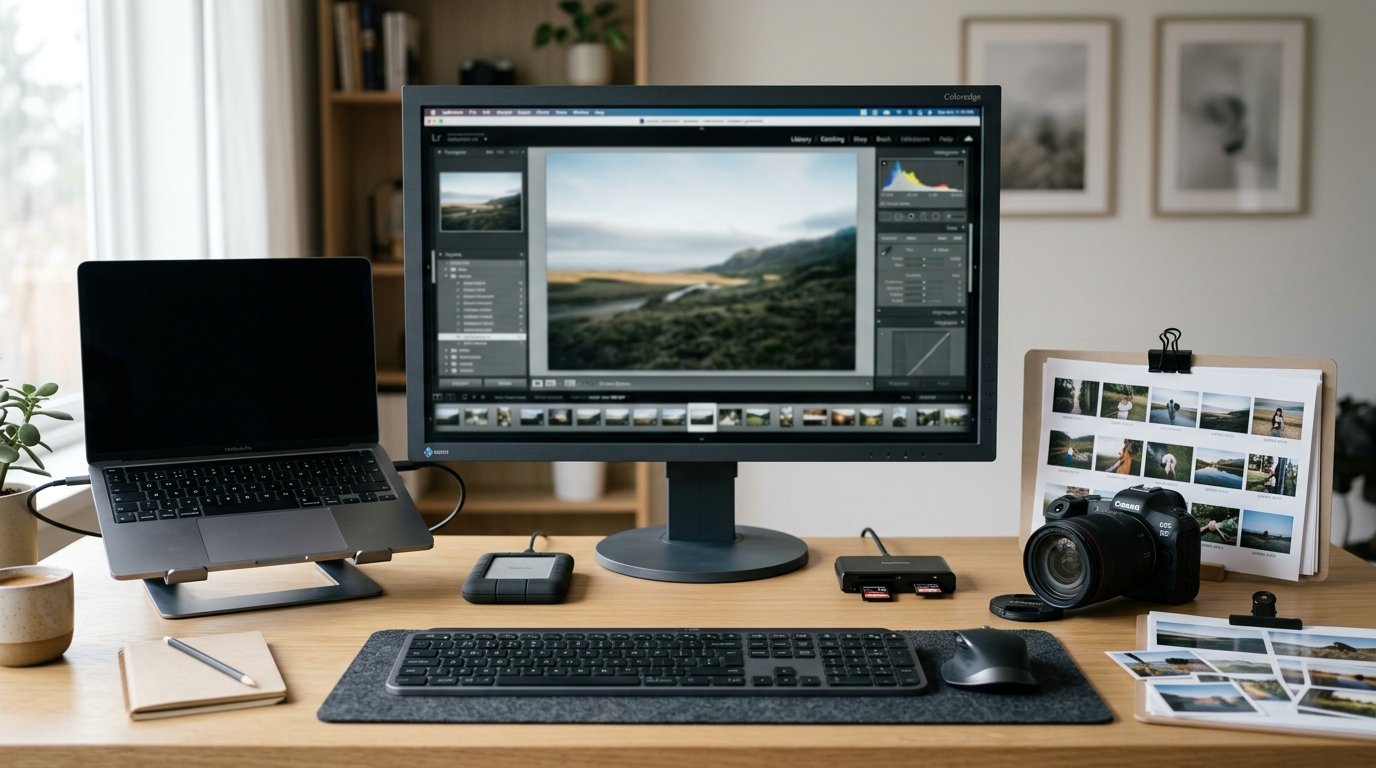
Photo editing does not stress a computer in only one way. A good editing machine needs balance.
The processor matters for imports, exports, previews, AI masking, panorama merging, and general responsiveness. RAM matters when you open large RAW files, use Photoshop layers, or run Lightroom and Photoshop together. Storage speed matters when your catalog, previews, and active projects live on an internal SSD or fast external SSD.
The display also matters. A fast computer connected to a poor screen can still lead to bad edits because brightness, contrast, and color may be misleading. For serious work, use a good display and calibrate it.
A practical beginner setup should prioritize:
- A modern processor
- At least 16GB RAM
- SSD storage
- A color-accurate display
- A reliable backup system
For most photographers, the bottleneck is not Mac versus PC. It is buying too little RAM, using slow storage, editing from a nearly full drive, or trusting an uncalibrated monitor.
Mac for Photo Editing: Strengths and Weaknesses
Macs are popular in photography because they offer a clean, consistent editing experience. Apple’s current processors are fast, power-efficient, and well optimized for many creative apps. A MacBook Air or MacBook Pro can handle Lightroom and Photoshop while staying quiet and offering strong battery life.
Mac displays are also a major advantage. The screens on many MacBooks are sharp, bright, and consistent, which helps when reviewing exposure, contrast, and color. macOS also has mature color management, making it a comfortable environment for photographers who print or deliver color-sensitive work.
The downside is cost and limited upgrade flexibility. Most modern Macs cannot have their RAM or internal storage upgraded later, so you need to choose carefully at purchase. Apple storage upgrades are expensive, and entry-level models may feel limiting if you work with large RAW files or big Photoshop documents.
Macs are strongest for photographers who value simplicity, portability, quiet performance, and a polished workflow. They are less ideal if you want to build, repair, or upgrade your computer over several years.
Pc for Photo Editing: Strengths and Weaknesses
A Windows PC can be an excellent post-production machine, especially if you want control over price and performance. You can choose from many laptops, desktops, processors, graphics cards, monitors, ports, and storage configurations. This makes it easier to match the computer to your exact workload and budget.
For desktop editing, PCs are especially strong. You can build or buy a system with a powerful CPU, lots of RAM, multiple internal SSDs, large hard drives for archives, and a dedicated graphics card. If your needs grow, you may be able to add RAM, replace storage, or upgrade the GPU instead of buying a completely new computer.
The main weakness is that quality varies widely. A cheap Windows laptop with a poor display, slow SSD, and weak cooling may be frustrating for editing, even if the spec sheet looks decent. Some Windows laptops also have less accurate screens unless you choose carefully.
PCs are best for photographers who want value, customization, desktop power, or upgrade paths. They require more comparison shopping, but the payoff can be a very capable editing system for less money.
Performance in Lightroom, Photoshop, and Other Editing Apps
Real editing performance depends on the task. In Lightroom Classic, a fast processor helps with importing, generating previews, applying AI masks, merging panoramas, and exporting JPEGs. RAM helps when moving between large catalogs, many images, and other open apps.
In Photoshop, RAM becomes more important as files get more complex. A simple portrait retouch is easy for most modern computers. A large file with many layers, smart objects, masks, and high-resolution textures can slow down a low-RAM system quickly.
Graphics performance matters, but for photo editing it is usually not the first priority unless you use GPU-heavy features, high-resolution displays, AI tools, or multiple monitors. Spend first on CPU, RAM, SSD, and display quality.
Lightroom, Photoshop, Capture One, Affinity Photo, and similar apps run well on both platforms. The difference is rarely “Mac can edit and PC cannot,” or the reverse. It is whether that specific machine has enough memory, storage speed, cooling, and screen quality for your files.
Cost, Upgrades, and Long-term Value
A Mac often costs more upfront, especially once you add extra RAM and internal storage. However, Macs can hold resale value well and may require less tinkering. For some photographers, the time saved by having a stable, predictable machine is worth the higher price.
A PC usually gives you more options at every price level. You can buy an affordable laptop, a powerful desktop tower, or a custom workstation. You can also pair a reasonably priced PC with an excellent external monitor and still spend less than some premium Mac setups.
Long-term value depends on how long the computer remains useful. A non-upgradable machine with too little RAM may age quickly. A desktop PC with expandable memory and storage may last longer because you can improve it over time.
Do not judge cost by the computer alone. Include external SSDs, backup drives, memory cards, card readers, monitor calibration tools, and a good display. Those accessories affect your editing experience as much as the computer platform.
Laptop Vs Desktop: the Choice May Matter More Than Mac Vs Pc
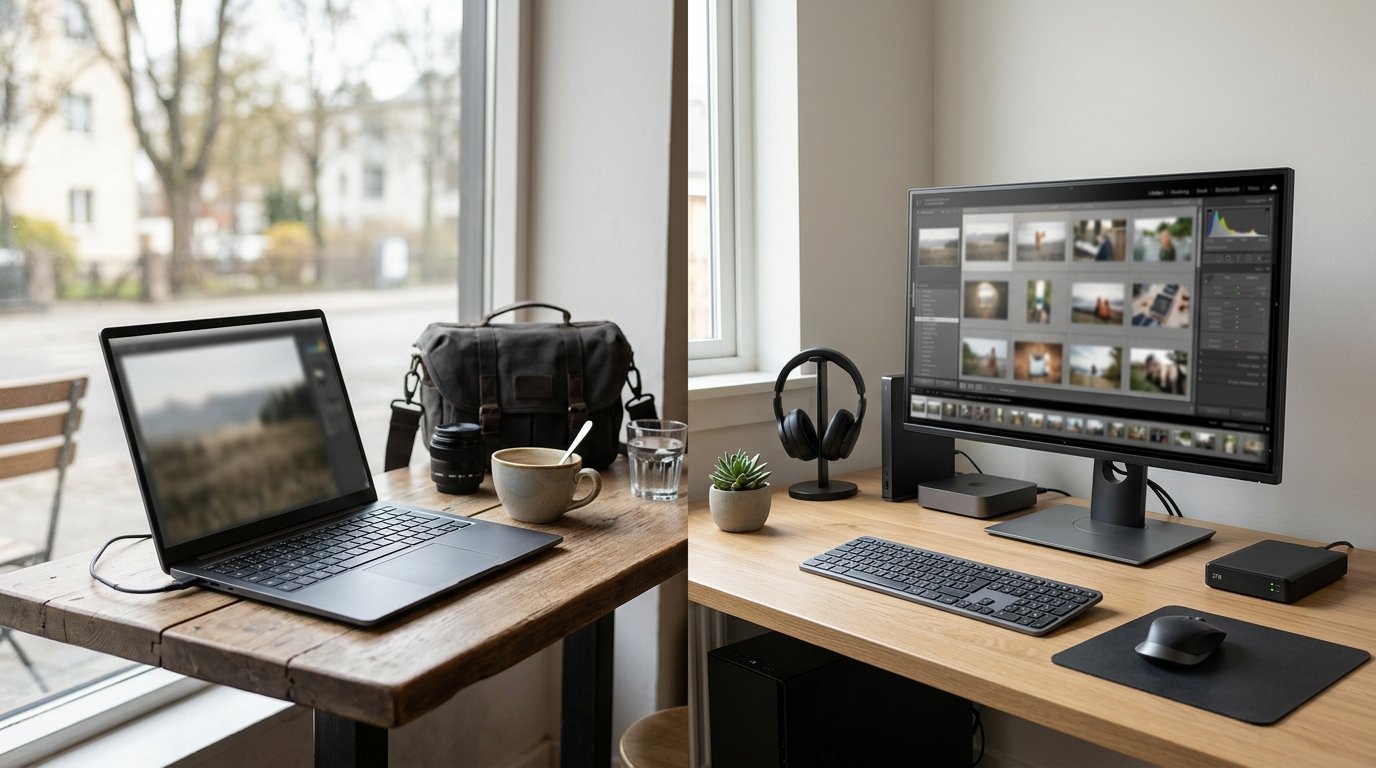
Before choosing Mac or PC, decide whether you need a laptop or desktop. This choice can affect your workflow more than the operating system.
A laptop is best if you travel, edit on location, work in cafés, or need one computer for everything. MacBooks are especially strong here because of battery life, display quality, and quiet performance, but high-quality Windows laptops can also work very well.
A desktop is better if you mainly edit at a desk and want more power, more storage, better cooling, and a larger monitor. A Windows desktop often gives the best performance per dollar, while a Mac mini, Mac Studio, or iMac can be a clean and compact option.
For many photographers, the ideal setup is a capable laptop plus external monitor and external SSDs. If you never need portability, put more of your budget into a desktop and display.
Recommended Specs for Beginner and Enthusiast Photographers
For beginner photo editing, aim higher than the cheapest configuration. Editing RAW files is more demanding than browsing the web or writing documents.
A good starting point:
| Component | Recommended minimum | Better choice |
|---|---|---|
| — | —: | —: |
| RAM | 16GB | 32GB |
| Internal storage | 512GB SSD | 1TB SSD or more |
| Display | IPS or high-quality built-in screen | Calibrated wide-gamut display |
| External storage | 1 external SSD | SSD plus backup drive |
| Processor | Modern midrange chip | Higher-end chip for large batches |
For a Mac, 16GB RAM should be considered the practical minimum for serious photo editing. Choose 24GB, 32GB, or more if you work with large files or keep apps open.
For a PC, prioritize a modern Intel, AMD, or equivalent processor, 16GB to 32GB RAM, NVMe SSD storage, and a good screen. Avoid buying based only on processor speed if the display is weak or storage is too small.
Which Should You Choose?
Choose Mac if you want a simple, refined editing experience, excellent laptop options, strong built-in displays, and smooth integration with iPhone, iPad, AirDrop, or other Apple tools.
Choose PC if you want the best performance per dollar, more upgrade options, more desktop power, or the ability to choose your exact monitor, storage, graphics, and case.
Choose based on your real workflow. A wedding photographer importing thousands of RAW files has different needs than a hobbyist editing landscapes once a week. A traveler may value battery life more than upgradeability. A studio photographer may prefer a desktop with a calibrated monitor.
For most beginners, the safest advice is simple: buy the best-balanced computer you can afford, get at least 16GB RAM, use SSD storage, and invest in a good display.
FAQ
Is Mac or Pc Better for Lightroom?
Both Mac and PC work well for Lightroom if the computer has enough RAM, a modern processor, and fast SSD storage. Macs often feel smooth and efficient, especially laptops. PCs can offer better value, especially desktops. Lightroom performance depends more on the specific machine than the platform.
Do Professional Photographers Use Mac or Pc?
Yes, professional photographers use both. Many choose Mac for portability, display quality, and a streamlined creative workflow. Others choose PC for power, upgrades, and better value in desktop workstations. Professional results come from a reliable, color-managed workflow, not from one operating system.
How Much Ram Do I Need for Photo Editing?
For basic photo editing, 16GB RAM is the practical minimum. If you edit large RAW files, use Photoshop layers, merge panoramas, or run several apps at once, 32GB is a better choice. More RAM helps keep the computer responsive as your editing projects become more complex.
Is a Macbook Air Enough for Photo Editing?
A modern MacBook Air can be enough for beginner and enthusiast photo editing, especially with 16GB RAM or more. It is good for Lightroom, basic Photoshop work, and travel editing. For heavy batch exports, large layered files, or long sessions, a MacBook Pro offers better sustained performance.
Should I Spend More on the Computer or the Monitor?
If your current computer is very slow, upgrade the computer first. But if your computer is already capable, a better monitor can improve your editing accuracy more than a small speed increase. For photography, color accuracy, calibration, and consistent brightness are essential for reliable post-processing.