
Short answer: choose Lightroom if you want a modern, cloud-based editor that works smoothly across your phone, tablet, laptop, and desktop. It is simpler to learn, easier for beginners, and excellent for travel, casual shooting, and photographers who like editing anywhere.
Choose Lightroom Classic if you manage large photo libraries on a desktop computer, shoot high volumes, rely on local hard drives, or need deeper file organization, printing, tethering, and professional workflow tools.
In the Lightroom vs Lightroom Classic 2024 decision, the editing tools are not the biggest difference. Both can produce excellent images. The real choice is workflow: Lightroom is built around cloud syncing; Lightroom Classic is built around a local catalog on your computer.
What Is Lightroom in 2024?
Lightroom, sometimes called the cloud-based Lightroom, is Adobe’s modern photo editing app designed around syncing and simplicity. Your photos can live in Adobe’s cloud system, making them available across supported devices.
The mental model is simple: import your photos, edit them, and access them from your phone, tablet, laptop, or desktop without manually moving files around. If you start editing a landscape photo on your iPad, you can usually continue on your computer later.
Lightroom is especially friendly for beginners because the interface is cleaner than Lightroom Classic. It focuses on the core tasks most photographers need: importing, rating, organizing into albums, editing exposure and color, applying masks, and exporting or sharing finished images.
What Is Lightroom Classic in 2024?
Lightroom Classic is Adobe’s traditional desktop-focused photo editor and organizer. It stores information about your photos in a catalog, while the actual image files usually stay on your computer, external drive, or local storage system.
Classic still matters because many serious photographers need tight control over where photos are stored, how they are organized, and how large archives are managed. A wedding photographer with years of client galleries, a wildlife photographer with huge RAW files, or a studio photographer shooting tethered may find Classic more practical.
Its interface is older and more complex, but that complexity brings power. Lightroom Classic is still the stronger choice for high-volume desktop workflows, detailed metadata management, advanced exporting, printing, and long-term archive control.
The Biggest Difference: Cloud Workflow Vs Local Catalog Workflow
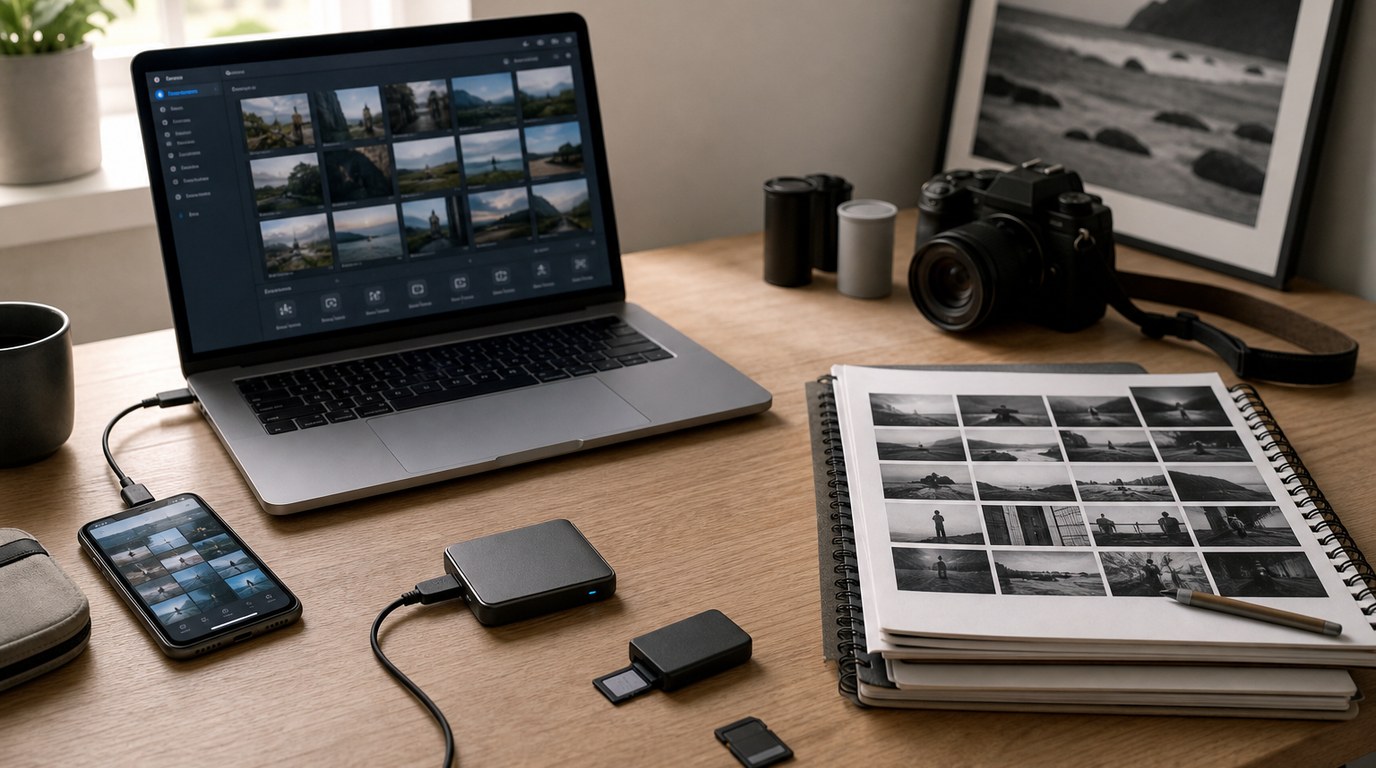
The most important difference is not a single editing slider. It is where your workflow lives.
Lightroom uses a cloud-first workflow. Your images can sync through Adobe’s cloud, so you can move between devices easily. This is convenient, but it means storage plans, upload speed, and internet access matter more.
Lightroom Classic uses a local catalog workflow. Think of the catalog as a detailed index or notebook that remembers where your photos are, what edits you made, what ratings you gave them, and which collections they belong to. The photos themselves can stay on your internal drive or external hard drives.
This makes Classic better for photographers who want full control over local storage. It also means you must understand file locations, backups, and catalog management. If you move photo folders outside Classic, the catalog can lose track of them.
So the core question is: do you want Adobe to handle syncing for convenience, or do you want to manage your own photo archive locally?
Editing Tools: How Similar Are They?
For everyday editing, Lightroom and Lightroom Classic are very similar. Both can adjust exposure, contrast, highlights, shadows, white balance, color, sharpening, noise reduction, lens corrections, cropping, healing, and masking. Both support powerful RAW editing and can create professional-quality results.
This means a beginner editing portraits, landscapes, street photos, or family images should not choose based only on image quality. The same photographer can usually create a beautiful final edit in either app.
There are still workflow differences around how tools are arranged and how fast certain tasks feel. Classic gives experienced users more traditional desktop controls and module-based workflow. Lightroom feels more streamlined and consistent across devices.
If your main concern is, “Will my photos look better in one?” the answer is usually no. Skill, shooting technique, and editing judgment matter more than which version you choose.
Organization and Photo Management
Organization is where the difference becomes more noticeable.
Lightroom uses albums, folders, search, ratings, flags, and cloud-based organization. It works well for smaller to medium-sized libraries and for photographers who prefer a simple structure. If you shoot travel photos, family events, portraits for social media, or occasional client sessions, Lightroom’s organization may feel easy and natural.
Lightroom Classic is stronger for large archives. It has more mature tools for folders, collections, smart collections, keywords, metadata, filtering, renaming, and batch management. For example, a wedding photographer can sort thousands of images by rating, camera, lens, capture time, keyword, or collection set. A wildlife photographer can build keyword systems for species, locations, and seasons.
Classic also makes local folder structure more visible. That is helpful if you think in terms of drives and folders. But it can be intimidating if you are new to photo management.
For simple organization, Lightroom is easier. For deep archive control, Classic wins.
Performance, Storage, and Internet Dependence
Performance depends on your computer, file sizes, internet speed, and storage setup.
Lightroom can feel very smooth when your photos are synced and you are working across devices. However, cloud uploads and downloads can slow things down if you shoot many large RAW files or have a poor internet connection. Travel photographers may love the convenience but still need to plan around hotel Wi-Fi or limited mobile data.
Lightroom Classic depends more on your local hardware. A fast computer, SSD storage, and well-managed catalog can make Classic quick for large desktop workflows. But a slow external drive, bloated catalog, or weak computer can make it feel sluggish.
Storage is also different. Lightroom pushes you toward cloud storage. Classic lets you build your own local storage system with internal drives, external drives, and backups.
Neither approach is automatically better. Lightroom favors convenience; Classic favors control.
Mobile, Tablet, and Travel Workflows
Lightroom clearly wins for mobile and travel workflows. If you shoot on a trip, import photos to a tablet, make edits on the plane, and finish them later on a desktop, Lightroom is built for that.
It is also better if you enjoy editing with a stylus or quickly sharing images from your phone. A travel photographer can rate images at a café, adjust color on an iPad, and post a finished image without waiting to return home.
Lightroom Classic can sync some collections to mobile, but it is not as seamless as using Lightroom as your main system. For photographers who want multi-device freedom, Lightroom is the simpler choice.
Professional Features and High-volume Workflows
Many professionals still choose Lightroom Classic because it fits demanding desktop workflows. It is especially useful for weddings, events, studios, schools, sports, wildlife, and commercial work where thousands of images may need to be imported, culled, renamed, keyworded, edited, exported, and archived.
Classic also remains important for features such as tethered shooting, detailed export presets, print workflows, local folder control, and advanced library management. A portrait studio, for example, may want to shoot directly into a computer, apply presets, organize by client, and export multiple file sizes for print and web.
This does not mean Lightroom is unprofessional. Many working photographers can use it successfully. But if your business depends on managing large volumes quickly and predictably from a desktop setup, Classic is usually the safer choice.
Which One Should Beginners Choose?
Most beginners should start with Lightroom if they do not already have a strong reason to use Classic. It is cleaner, easier to understand, and less likely to confuse you with catalogs, missing folders, and local file paths.
Lightroom lets you focus on photography basics: exposure, color, cropping, masking, and building a consistent editing style. That fits Camera How’s beginner-friendly approach because learning editing is easier when the software does not feel like a filing system first.
Choose Lightroom Classic as a beginner only if you already know you want a desktop archive, use external drives, or plan to shoot high volumes seriously.
Lightroom Vs Lightroom Classic: Best Choice by Photographer Type
| Photographer type | Better choice | Why |
|---|---|---|
| — | —: | — |
| Beginner hobbyist | Lightroom | Simpler interface and easier syncing |
| Travel photographer | Lightroom | Best for mobile, tablet, and laptop editing |
| Social media creator | Lightroom | Fast sharing and cross-device access |
| Wedding photographer | Lightroom Classic | Stronger high-volume culling and organization |
| Portrait studio | Lightroom Classic | Better tethering and client folder workflows |
| Landscape photographer | Either | Lightroom for travel; Classic for large archives |
| Wildlife photographer | Lightroom Classic | Better for huge RAW libraries and keywords |
If you shoot casually and want convenience, choose Lightroom. If you shoot heavily and need structure, choose Classic.
Can You Use Both Lightroom and Lightroom Classic?
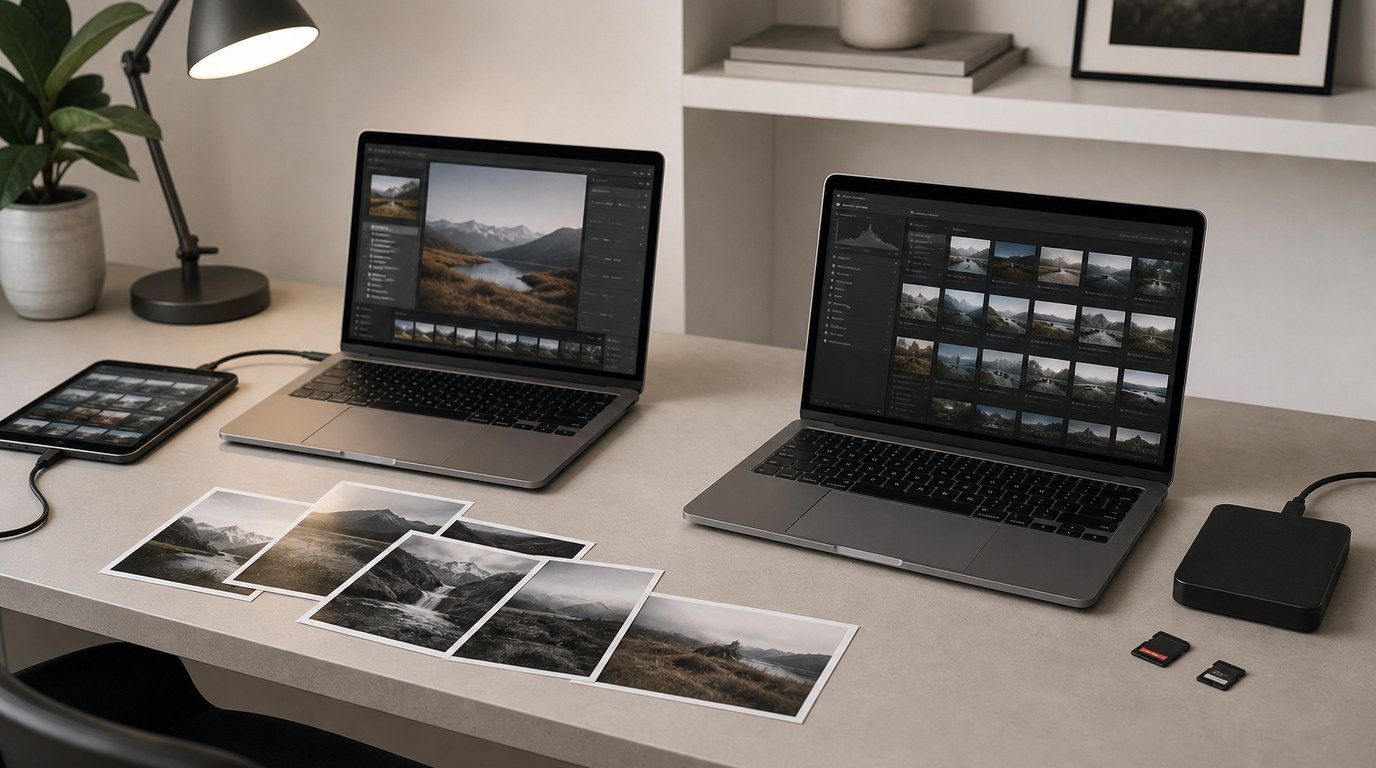
Yes, you can use both, but beginners should be careful. A hybrid workflow can become confusing if you do not understand what is stored in the cloud, what is stored locally, and which app is your main source of truth.
A practical approach is to choose one primary app. Some Classic users sync selected collections to Lightroom mobile for reviewing or light editing. Some Lightroom users occasionally use Classic for specific desktop tasks. But switching back and forth without a plan can create duplicate files, storage confusion, and inconsistent organization.
Use both only if you have a clear reason.
Final Verdict: Lightroom or Lightroom Classic in 2024?
In 2024, Lightroom is the better choice for most beginners, travelers, mobile editors, and photographers who want simple cloud-based convenience.
Lightroom Classic is the better choice for professionals, high-volume shooters, and anyone who wants full control over local storage, catalogs, folders, metadata, printing, and desktop workflow.
The best choice is not about which app is “more powerful” in every situation. It is about which workflow matches how you actually shoot, store, edit, and deliver your photos.
FAQ
What Should a Beginner Know First About Lightroom Vs Lightroom Classic 2024?
Beginners should know that both apps can edit photos beautifully. The main difference is workflow. Lightroom is cloud-based and easier to learn. Lightroom Classic is desktop-based and better for managing large local photo libraries, but it has a steeper learning curve.
What Matters Most When Evaluating Lightroom Vs Lightroom Classic 2024?
The most important factor is how you want to store and access your photos. If you want easy syncing across devices, choose Lightroom. If you want local control, external drives, detailed organization, and high-volume desktop workflow, choose Lightroom Classic.
What Mistakes Should Readers Avoid with Lightroom Vs Lightroom Classic 2024?
Avoid choosing based only on the name or assuming Classic is outdated. Also avoid using both apps without a plan. Many problems come from misunderstanding cloud storage, local folders, catalogs, and syncing. Pick one main workflow before importing thousands of photos.
What Is the Next Logical Step After Learning About Lightroom Vs Lightroom Classic 2024?
Decide how you shoot most often. If you edit on multiple devices, try Lightroom first. If you organize large RAW archives on a computer, try Lightroom Classic. Then import a small test folder and practice editing, rating, searching, and exporting before committing your full library.