
Image editing software alternatives are not just “cheaper Photoshop.” Some are built for RAW photo development, some for detailed retouching, some for fast social media edits, and others for mobile-first workflows. The best choice depends on what you photograph, how much control you need, and whether you prefer free software, a one-time purchase, or a subscription.
For most photographers, the key split is simple: use a RAW editor for exposure, color, lens correction, noise reduction, and exporting; use a pixel editor for layers, masks, object removal, composites, and detailed retouching. Beginners do not need every feature at once. Start with the editor that fits your most common workflow, then add another tool only when your editing needs become more specific.
What Counts as an Image Editing Software Alternative?
An image editing software alternative is any program or app that helps you improve, correct, organize, or transform photos without relying on the most familiar industry-standard tools. But alternatives are not all designed to replace the same thing.
A RAW developer, such as darktable, Capture One, DxO PhotoLab, or ON1 Photo RAW, is mainly for processing camera files. It helps recover highlights, lift shadows, adjust white balance, apply lens corrections, reduce noise, and export polished JPEGs or TIFFs.
A pixel editor, such as Affinity Photo, GIMP, or Photopea, is closer to a digital canvas. It lets you use layers, selections, masks, cloning, healing, text, and compositing.
A simple editor or mobile app may focus on speed: crop, brighten, apply presets, remove blemishes, and post online. Knowing these categories prevents frustration.
Quick Comparison: Popular Alternatives by Use Case
Use this table as a starting point, not a final verdict. The “best” option depends on your camera files, computer, patience for learning, and whether you want advanced control or quick results.
| Use case | Good alternatives to consider | Best fit |
|---|---|---|
| RAW photo editing | darktable, RawTherapee, Capture One, DxO PhotoLab, ON1 Photo RAW | Landscapes, travel, wildlife, serious hobbyists |
| Photoshop-style editing | Affinity Photo, GIMP, Photopea, Krita | Retouching, composites, product photos, creative edits |
| Quick beginner edits | Canva, Photos app, Pixlr, Fotor | Cropping, brightness, simple social posts |
| Mobile editing | Snapseed, Lightroom Mobile, VSCO, Apple Photos, Google Photos | Phone photography and edits on the go |
| Free/open-source workflows | darktable, RawTherapee, GIMP | Budget-conscious learners |
| One-time purchase tools | Affinity Photo, ON1 Photo RAW, DxO PhotoLab | Users avoiding subscriptions |
If you shoot RAW often, prioritize RAW processing quality. If you make thumbnails, graphics, or retouched portraits, prioritize layers and local editing tools.
Best Alternatives for Raw Photo Editing
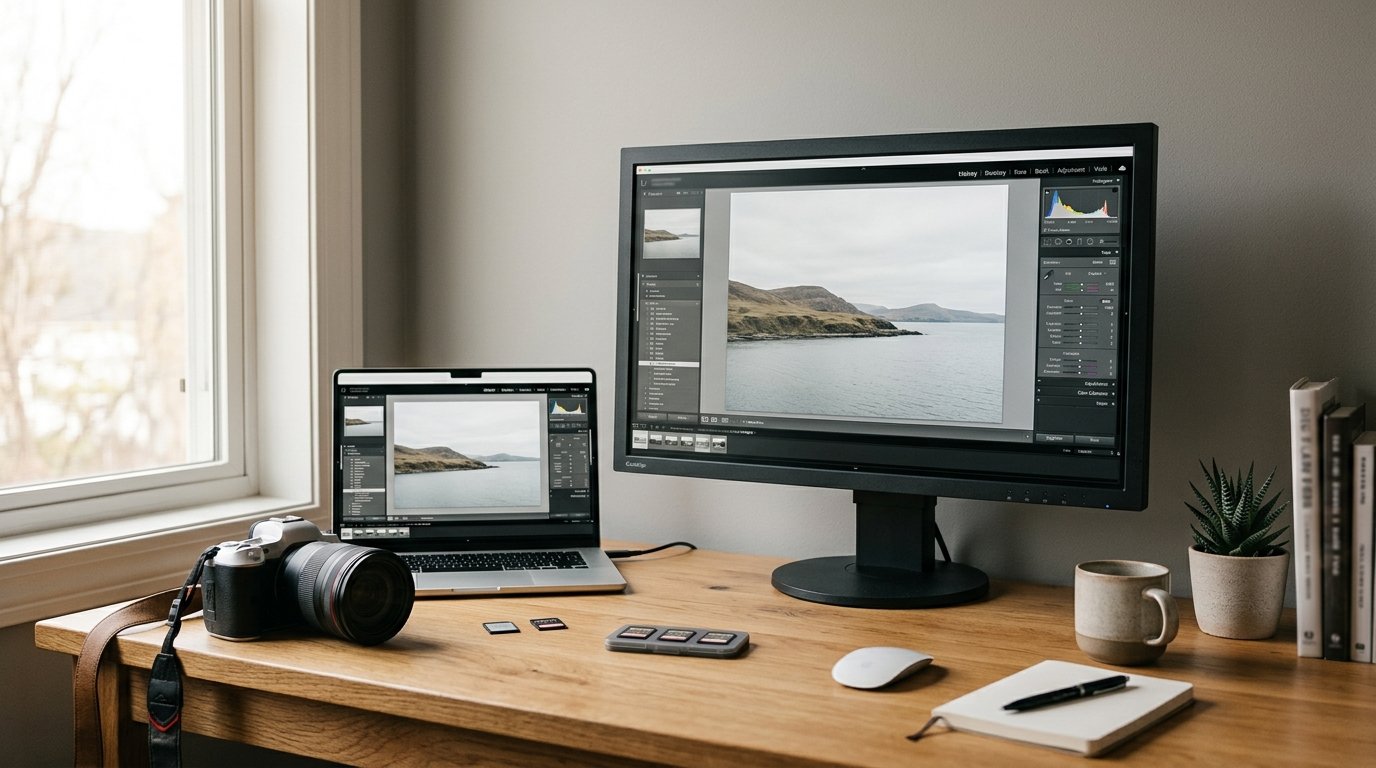
RAW editing software is the best place to start if you use a mirrorless camera, DSLR, or advanced compact camera and want maximum quality. RAW files contain more information than JPEGs, so a good RAW editor can recover skies, correct color casts, reduce noise, and sharpen without damaging the original file.
darktable and RawTherapee are strong free options. They can produce excellent results, especially for landscapes and travel photos, but their interfaces may feel technical at first. Capture One is known for color control and tethered shooting, which is useful for studio and product photography. DxO PhotoLab is especially strong for lens corrections and noise reduction. ON1 Photo RAW combines RAW development, effects, and organization in one package.
Look for support for your camera model, good highlight recovery, reliable lens profiles, batch editing, and export options. If you photograph weddings, wildlife, or large trips, speed and file organization matter almost as much as image quality.
Best Alternatives for Photoshop-style Editing and Retouching
Photoshop-style editors are useful when you need to change specific parts of an image rather than simply develop the whole photo. Think portrait skin cleanup, removing distractions, replacing a background, blending exposures, adding text, or creating a composite image.
Affinity Photo is one of the strongest paid alternatives because it offers layers, masks, selections, frequency separation, panorama tools, HDR merging, and advanced retouching with a one-time purchase model. GIMP is free and powerful, though its workflow can feel less polished to beginners. Photopea runs in a browser and resembles Photoshop’s layout, making it handy for quick edits on different computers. Krita is better known for digital painting, but it can handle layered image work too.
For photographers, the most important features are non-destructive layers, accurate selections, healing and clone tools, color adjustment layers, and support for high-resolution files.
Best Simple Editors for Beginners and Quick Edits
Not every photo needs a professional workflow. If you mostly shoot JPEGs, family photos, travel snapshots, or social media images, a simple editor may be enough.
Canva is useful for combining photos with text, templates, and graphics. It is not a deep photo editor, but it is excellent for posts, flyers, thumbnails, and quick layouts. Pixlr and Fotor offer browser-based editing with basic adjustments, effects, and background tools. Apple Photos, Microsoft Photos, and Google Photos are often enough for cropping, straightening, exposure, contrast, and quick color changes.
The trade-off is control. Simple editors are fast, but they usually have weaker masking, limited RAW support, fewer export choices, and less precise color management. They are best when speed matters more than fine detail.
Best Mobile Image Editing Alternatives
Mobile editing apps are ideal if you shoot mostly with a phone or want to edit while traveling. Snapseed is a strong free choice with selective adjustments, healing, curves, and useful creative tools. Lightroom Mobile is popular because it handles both quick edits and more advanced color work, especially if you also use Lightroom on a computer. VSCO is known for film-style presets and fast aesthetic edits.
Apple Photos and Google Photos are convenient for basic corrections because they are already connected to your phone library. The limit is precision. Mobile apps can be excellent, but small screens make detailed retouching, color checking, and batch workflows harder. For serious printing, product work, or large RAW files, a desktop editor is usually more comfortable.
Free Vs Paid Alternatives: What Do You Actually Give up?
Free software can be very capable. darktable, RawTherapee, and GIMP can produce professional-looking results if you invest time in learning them. The main cost is often convenience: interfaces may be less beginner-friendly, documentation can vary, and some automated tools may lag behind paid competitors.
One-time purchase tools, such as Affinity Photo, ON1 Photo RAW, and DxO PhotoLab, appeal to photographers who dislike subscriptions. You pay once for a version, though major upgrades may cost extra later.
Subscription tools often provide cloud syncing, frequent updates, AI tools, mobile integration, and smoother support. Freemium apps may be free at first but lock advanced features, exports, presets, or storage behind payment.
What you give up depends on the tool: speed, support, automation, organization, mobile syncing, or advanced camera/lens support.
How to Choose the Right Editing Software for Your Photography
Choose based on workflow, not popularity. Start with these questions:
- Do you shoot RAW or JPEG? RAW shooters should prioritize a RAW developer. JPEG shooters may be fine with a simple editor or mobile app.
- Do you need layers and masks? Portrait, product, and composite work often requires a Photoshop-style editor.
- How many photos do you edit at once? Events, wildlife, and travel shoots need batch editing and organization.
- Do you print your work? Printing benefits from color management, high-quality exports, and careful sharpening.
- What is your learning tolerance? Free tools can be powerful, but some require more patience.
- What is your budget model? Decide whether you prefer free, one-time purchase, or subscription before building habits around a tool.
A landscape photographer may choose darktable or DxO PhotoLab. A portrait retoucher may prefer Affinity Photo. A social media creator may be happy with Canva and Snapseed.
Beginner Workflow Example: from Camera to Finished Photo
Imagine you photograph a sunset landscape in RAW. First, import the file into a RAW editor such as darktable, RawTherapee, DxO PhotoLab, or ON1 Photo RAW. Adjust white balance, recover highlights in the sky, lift shadow detail, correct lens distortion, reduce noise, and sharpen.
Next, export a high-quality JPEG for sharing. If there is a distracting sign or dust spot, open the exported file or a TIFF in Affinity Photo, GIMP, or Photopea for healing and cleanup. Finally, resize the image for Instagram, your website, or printing. This two-step workflow keeps RAW adjustments separate from detailed pixel edits.
Common Mistakes When Comparing Editing Software
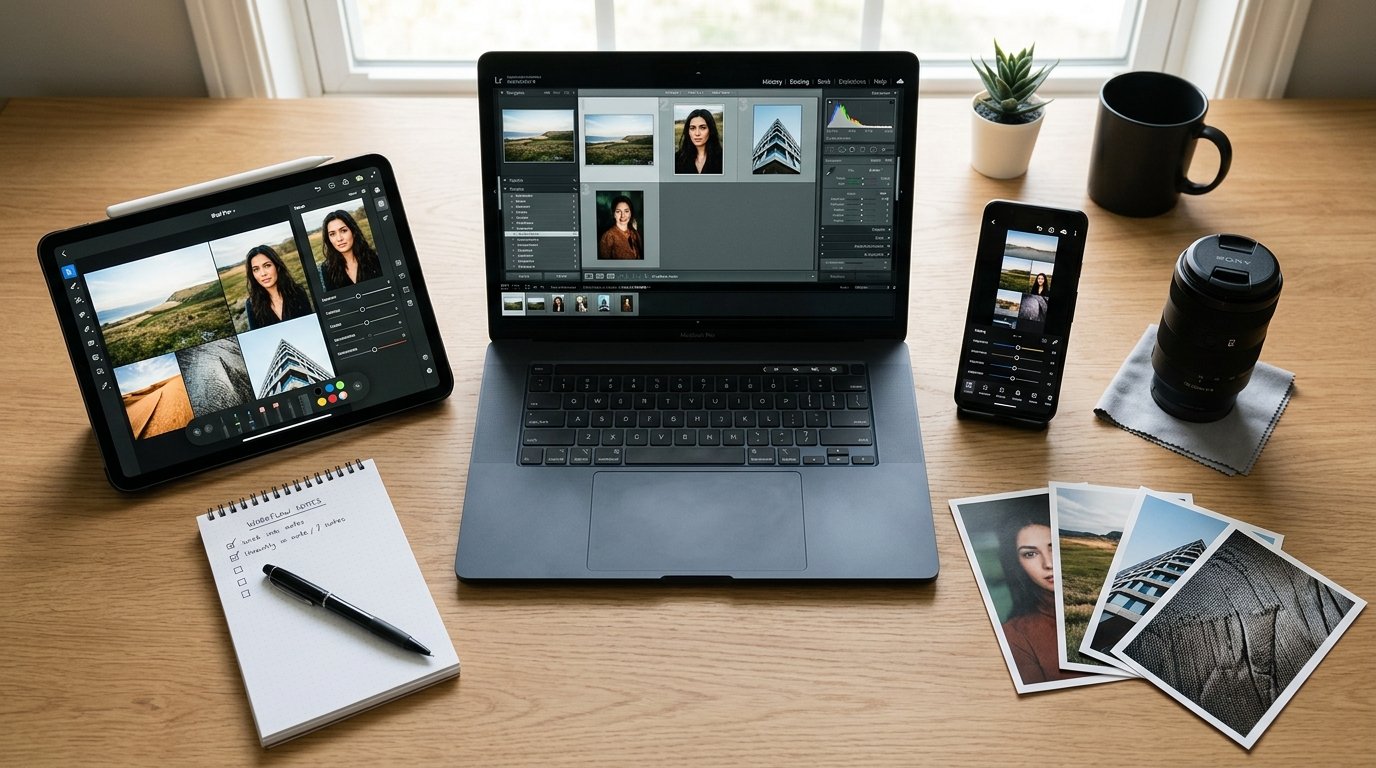
The biggest mistake is choosing software only because it is famous. A powerful editor is not helpful if it does not match your actual photos.
Another mistake is expecting one app to do everything perfectly. RAW development, retouching, cataloging, design, and mobile sharing are different jobs. Some programs combine them well, but compromises are normal.
Beginners also underestimate learning time. Switching tools will not instantly improve weak exposure, color, or composition. Good software helps most when you already understand the basic goal of the edit.
Final Recommendation: Start with the Workflow, Not the Brand
The best image editing software alternative is the one that fits your photography workflow. If you shoot RAW, start with a capable RAW editor. If you retouch portraits or create composites, add a layer-based editor. If you mainly share phone photos, a mobile or simple browser editor may be enough.
Do not chase every feature. Pick one practical tool, learn it well, and upgrade only when your photos demand more control.
FAQ
What Is the Best Free Alternative to Paid Image Editing Software?
For RAW photo editing, darktable and RawTherapee are two of the best free alternatives. For Photoshop-style editing, GIMP is the most established free option. The best choice depends on whether you need RAW development, detailed retouching, or simple everyday adjustments.
Is Affinity Photo a Good Photoshop Alternative for Photographers?
Yes. Affinity Photo is a strong Photoshop alternative for photographers who need layers, masks, healing tools, selections, panorama stitching, HDR merging, and detailed retouching. It is especially appealing because it uses a one-time purchase model instead of a traditional subscription.
Do I Need Raw Editing Software If I Only Shoot Jpeg?
Not necessarily. If you only shoot JPEG, you can use simpler editors for cropping, exposure, color, and sharpening. RAW software still offers useful organization and adjustment tools, but you will not get the same highlight recovery or white balance flexibility as with RAW files.
Are Browser-based Image Editors Good Enough for Photography?
Browser-based editors can be good enough for quick edits, social media graphics, resizing, and occasional retouching. Photopea, Pixlr, and Canva are convenient examples. For large RAW files, precise color work, batch editing, or print preparation, desktop software is usually more reliable.
Should Beginners Choose Free Software or Paid Software?
Beginners should choose based on patience, budget, and goals. Free software is excellent if you are willing to learn. Paid software often offers a smoother interface, better automation, and stronger support. If unsure, start free or with a trial before committing.